ScreenHalo
A small, free and open source menu bar app that lights the wall behind your Mac display with the colors on your screen.
Local lighting for compatible USB strips using the Skydimo serial protocol.
Requires macOS 14 Sonoma or later. Intel download · No developer tools needed to run the app · MIT License
On an Intel Mac, you can also build it yourself with Xcode or Apple’s Command Line Tools. Apple silicon (M-series) version coming soon.

Your screen's edges, painted on the wall.
Like an ambient-light TV, but for the monitor on your desk, using a USB LED strip on the back of your screen.
Sample the edges
ScreenHalo captures a small image of your selected display and samples bands along its left, top, and right edges. The bottom edge is not used.
Map to LEDs
Each LED follows the average color of its matching edge region. Adjustable smoothing softens transitions.
Send to the strip
Colors go straight to the strip over USB, and the wall glows to match.
Small, quiet, out of your way.
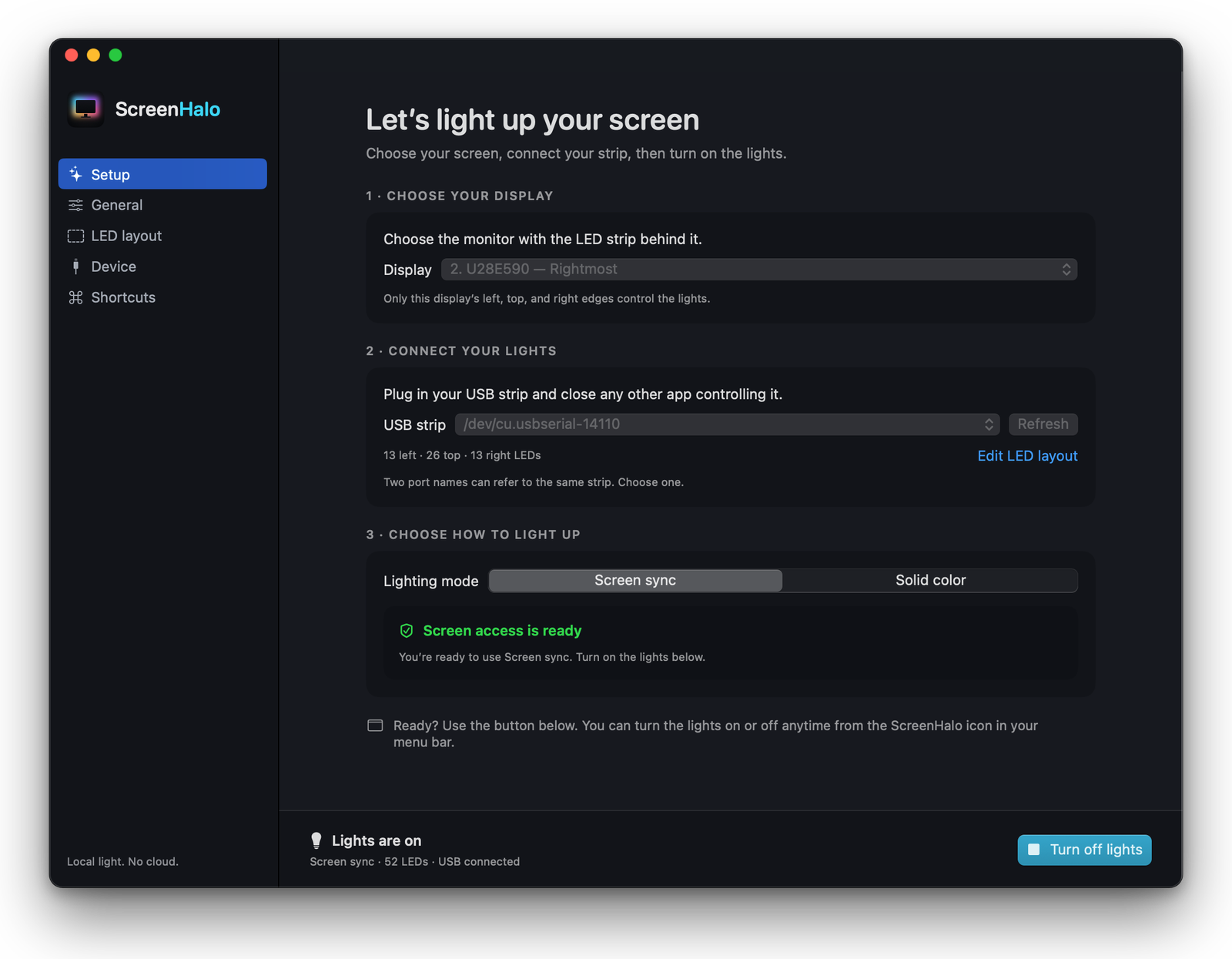
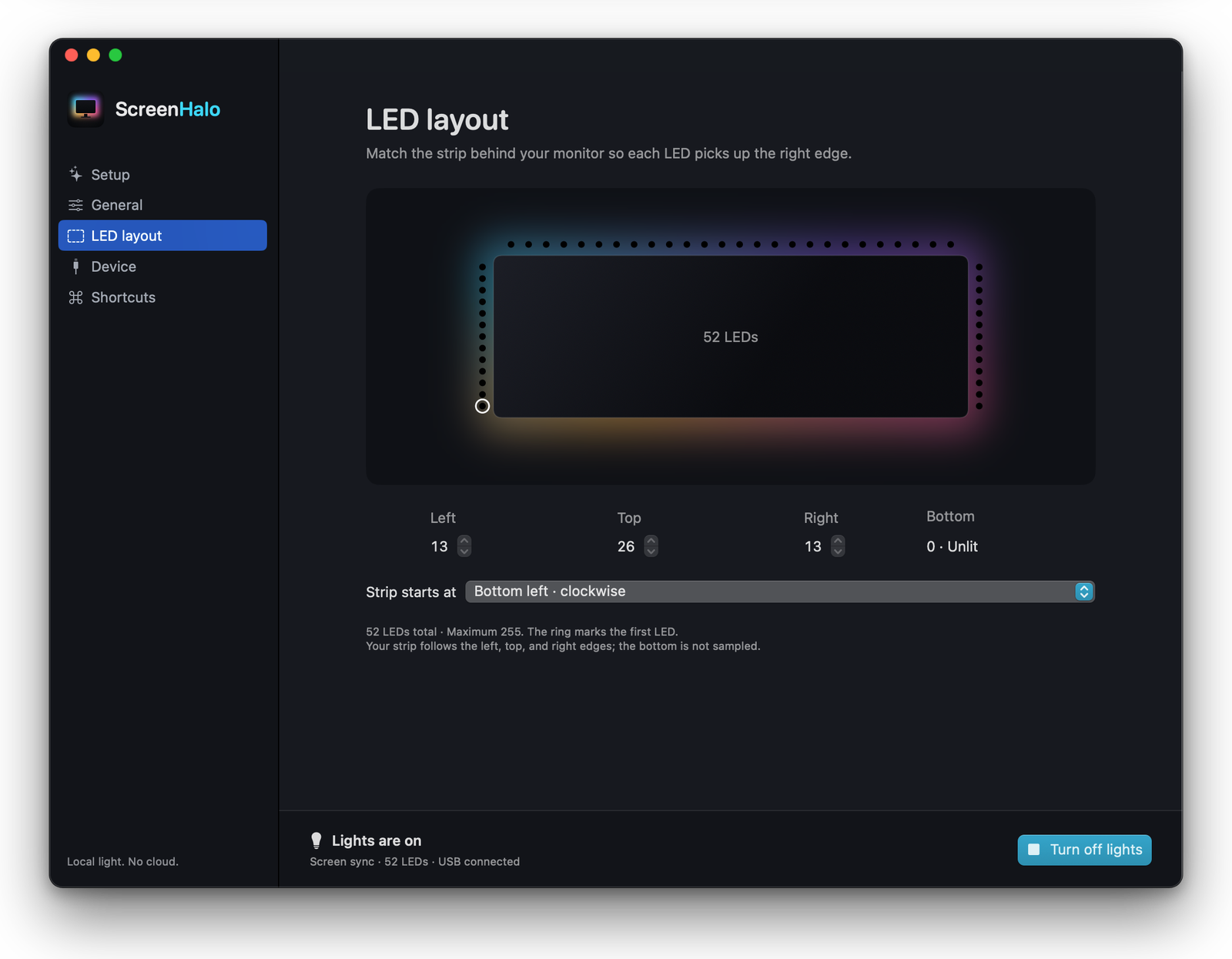
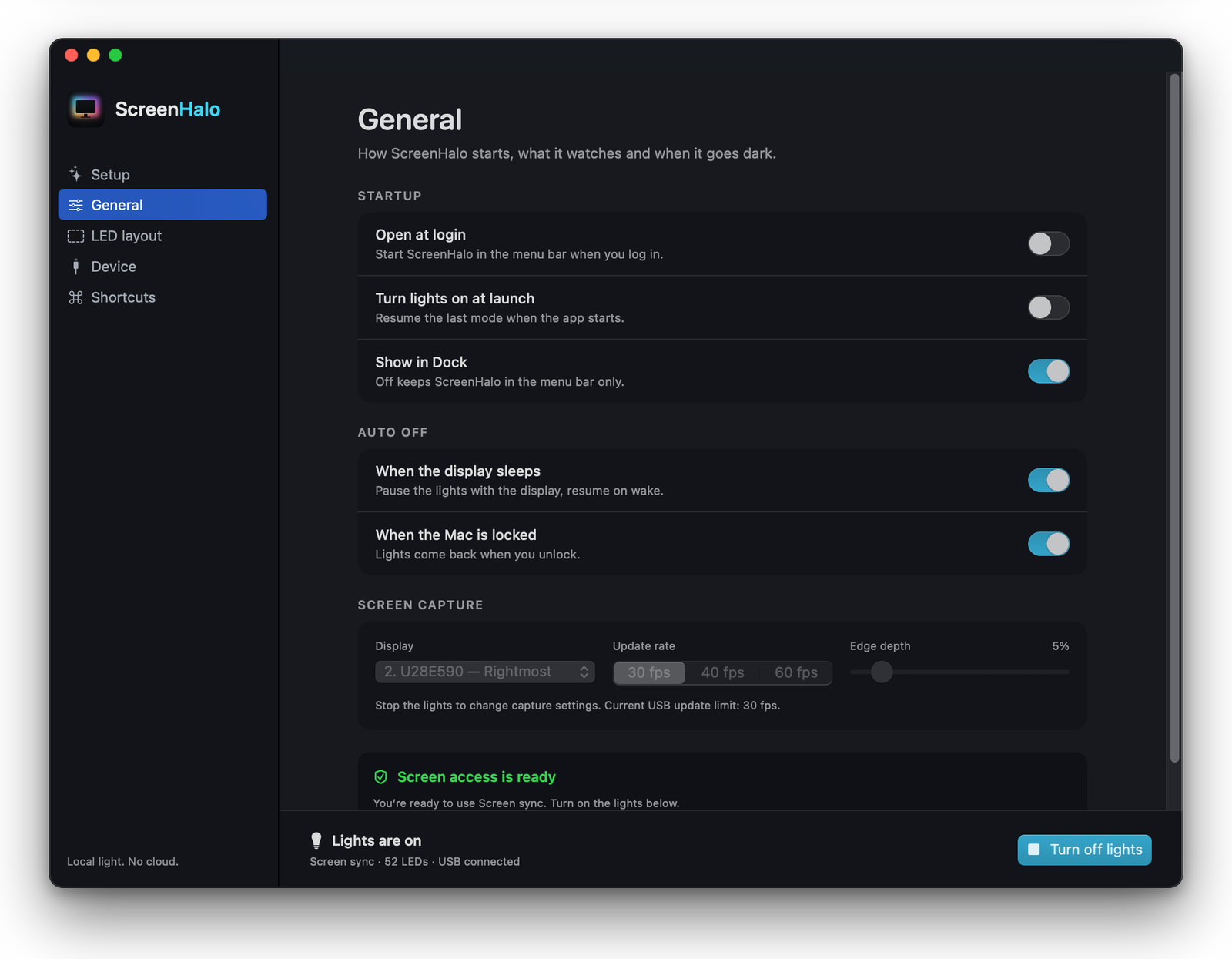
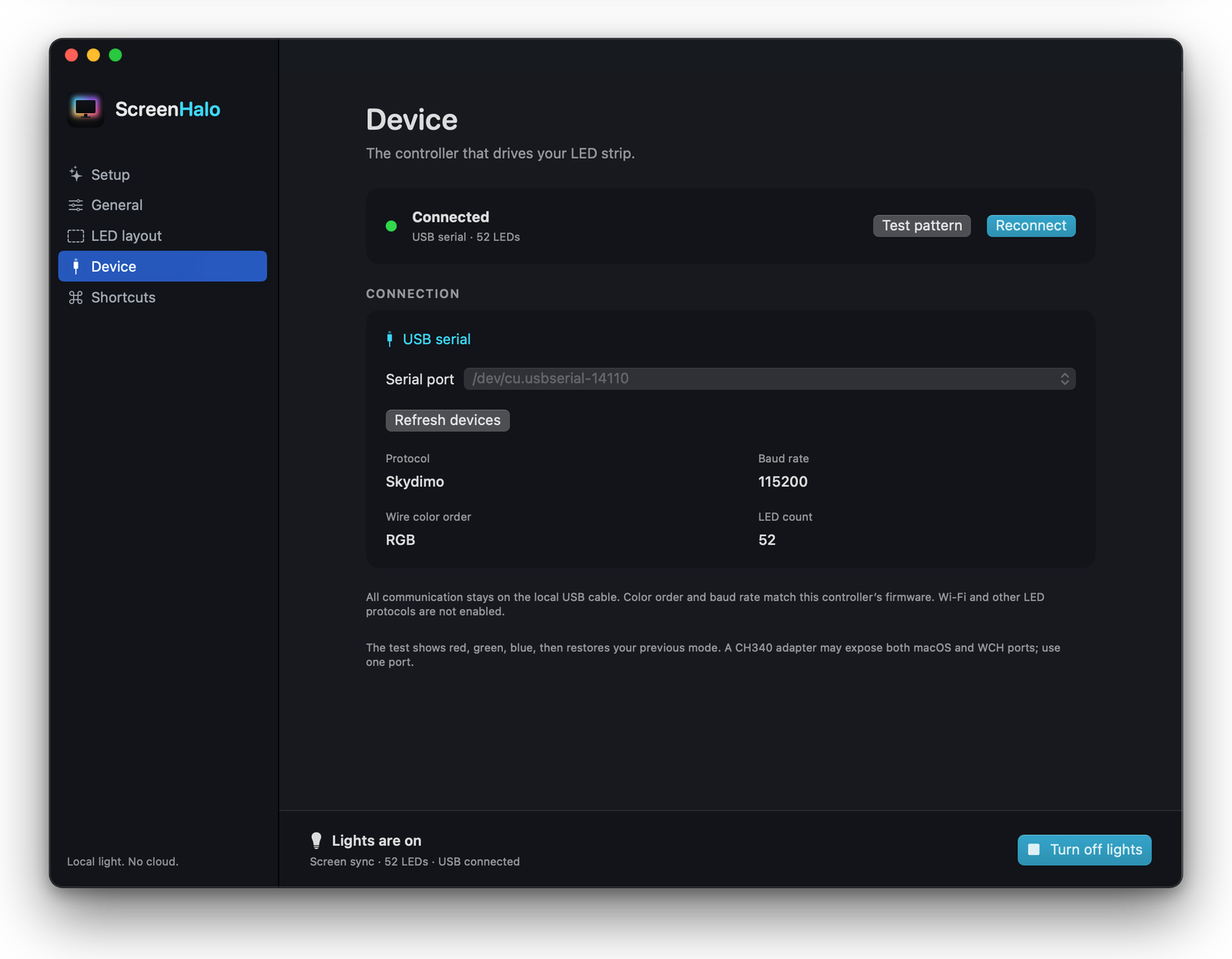
Your Mac. A compatible USB strip.
Choose a compatible controller and match the LED layout to your monitor.
- An Intel Mac running macOS 14 Sonoma or later. Download the ready-to-run app or build it yourself from source with Xcode or Apple’s Command Line Tools. A native Apple silicon (M-series) version is coming soon.
- A compatible Skydimo USB LED strip mounted on the back of your monitor. ScreenHalo uses the Skydimo serial protocol at 115200 baud, with RGB color order and up to 255 LEDs. Using the Skydimo app does not guarantee compatibility with every controller.
- A free USB port for the strip.
- More than screens. Desk light bars and other lighting could be explored. The current app supports one USB strip behind one selected display.
- Windows and Linux. ScreenHalo currently supports macOS only. Windows and Linux versions are possible future projects, with no release dates.
- Custom hardware for DIY strips. A controller for DIY strips is another possible direction. No custom hardware is available with the current app.
Up and glowing in five steps.
-
Download and install
Download the app ZIP from Releases, unzip it and drag ScreenHalo into your Applications folder. Choose the ScreenHalo.zip attachment, not GitHub’s source-code ZIP. No developer tools are required.
-
Open it the first time
Open ScreenHalo from Applications. Version 0.1.1 is signed with a Developer ID certificate and notarized by Apple. If macOS asks whether you want to open an app downloaded from the internet, click Open.
-
Run Setup
On first launch, ScreenHalo opens Setup. Choose the display with the strip behind it, plug your LED strip into a USB port and pick it from the list. Quit the Skydimo app first so it isn't holding the strip.
-
Allow screen access (Screen sync only)
Screen sync needs permission to see your screen; Solid color works without it. Click Allow screen access in Setup. If macOS asks, switch ScreenHalo on in System Settings › Privacy & Security (Apple lists it under “Screen & System Audio Recording”), then return to the app and click Check access. Quit and reopen ScreenHalo if macOS asks, or if access still appears unavailable. macOS shows a capture indicator while Screen sync is running. Screen images are processed in memory, never saved or sent over the network. Audio isn't captured.
-
Turn on the lights
Pick Screen sync or Solid color and click Turn on lights. If the glow looks shifted or mirrored, open LED layout and set how many LEDs are on each side and where the strip starts.
Lives in your menu bar.
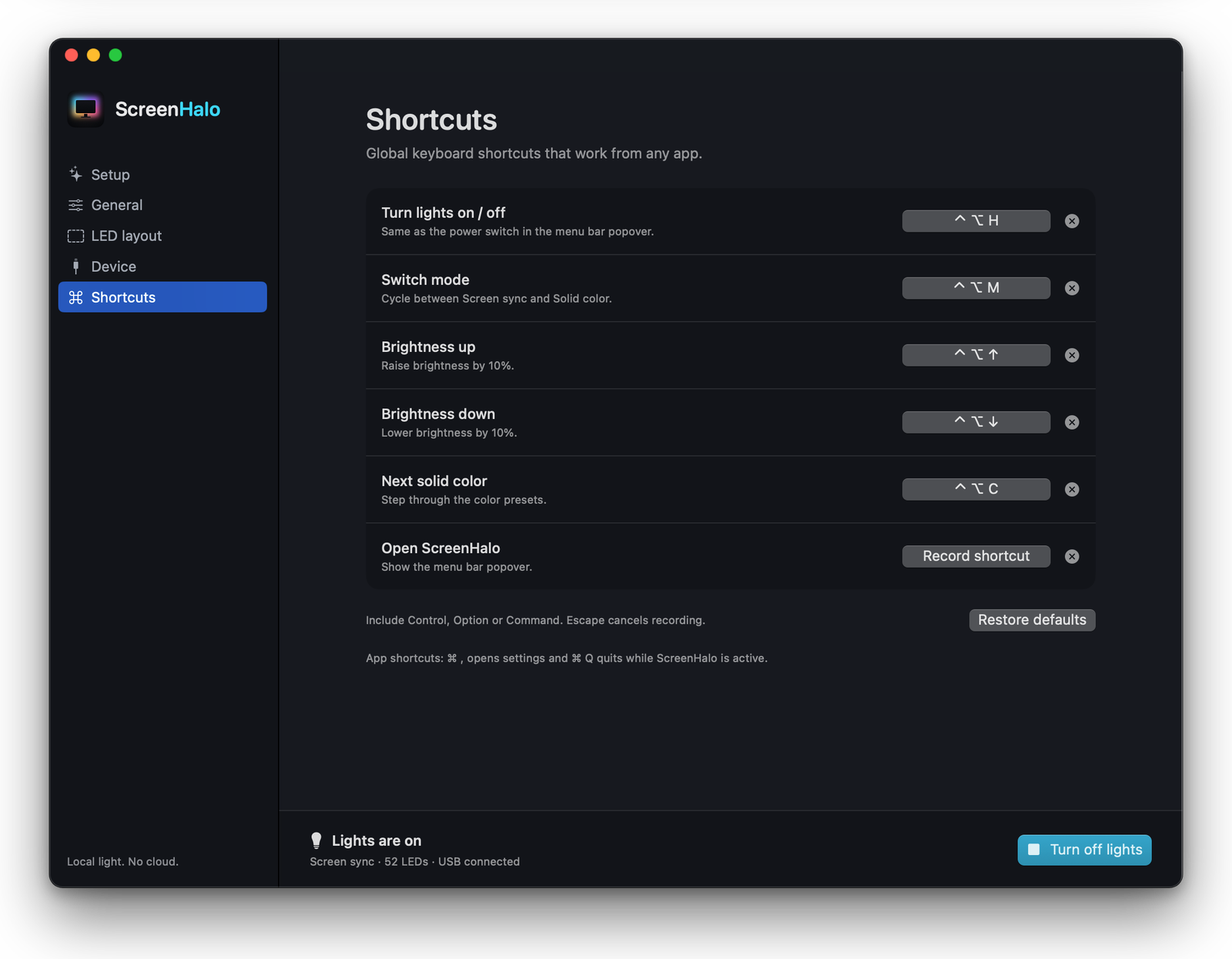
Click the halo icon to turn the lights on or off, switch between Screen sync and Solid color, and adjust brightness and smoothing. The icon changes to show whether the lights are on or off. Closing the settings window keeps the app running; choose Quit ScreenHalo to exit.
| Action | Keys |
|---|---|
| Turn lights on / off | ⌃⌥H |
| Switch mode | ⌃⌥M |
| Brightness up / down | ⌃⌥↑ / ↓ |
| Next solid color | ⌃⌥C |
Change them any time in Settings › Shortcuts.
Screen colors stay local.
ScreenHalo processes frames from your selected display in memory and uses the edge colors to drive your lights. Screen images are never saved or uploaded. Your preferences are saved locally.
I wanted my desk lights to work locally, without an account or a cloud service, so I built ScreenHalo.
- No saved screen images. Screen images are processed in memory, never saved or sent over the network. Audio isn't captured.
- No screen data goes over the internet. Colors go straight to your LED strip over USB.
- No account, tracking, or analytics in the app. Just install and go.
- Open source. See how the app works: read the code.
Website analytics
This website uses Google Analytics only if you accept analytics cookies. It helps measure visits, approximate countries, browser and device types, referral sources, and clicks on downloads, source code, issues, and screenshots. A download click does not confirm an installation. No Google Analytics tag loads before you accept.
Google processes this website usage data. Advertising storage, ad personalization, and Google signals are disabled in our tag configuration. We remember your consent choice in this browser for up to six months. Use Analytics settings in the footer to change your choice; rejecting disables collection and clears this site’s Google Analytics cookies. ScreenHalo’s macOS app has no analytics. See Google’s privacy policy.